
AT&T has a firewall named Active Armor, which blocks our IP address. You will need to disable it using the Smart Home Manager app. Once the Egg Genius has connected to your Wi-Fi router, you can re-enable it. You can disable AT&T ActiveAmor via Mobile App "Smart Home Manager" and tap on upper right for "Chat" icon, then send a message "disable activearmor", then "Yes'.
You can also use your Smart Home Manager app to see if your WiFi router is blocking your Egg Genius. The name will show as ESP####. You can then select unblock from the AT&T Smart Home Manager app.
The Egg Genius will only connect to a 2.4 GHz connection. Please be sure that your 2.4 GHz connection is enabled and discoverable. You may need to contact AT&T to confirm.
Once the above steps have been done, you can set up your Egg Genius or Flame Boss to your WiFi Router using the steps below.
- Plug up your Egg Genius or Flame Boss
- Device needs to be in slow blink mode. (Press the pin in between the pit and meat jack once using a paperclip if not in slow blink) (Slow blink = 1/sec)
- Open the Flame Boss or Egg Genius mobile app version 6.7.4 or later
- Select the Add New button at the top of the "Devices" page
- There are three options available. Use the first option for the serial numr
- Enter the serial number found on the neck of the controllerSee Egg Genius Wifi Instructions and select Join FB Wi-Fi
- See FB-####### and select Join
- You receive a Success notification once your phone has connected to your controller. Then select OK
- You will be taken back to the Devices tab
- See your Egg Genius device showing and select the Blue "Setup WiFi" button
- See your WiFi network name and select it
- Then enter the password for it.
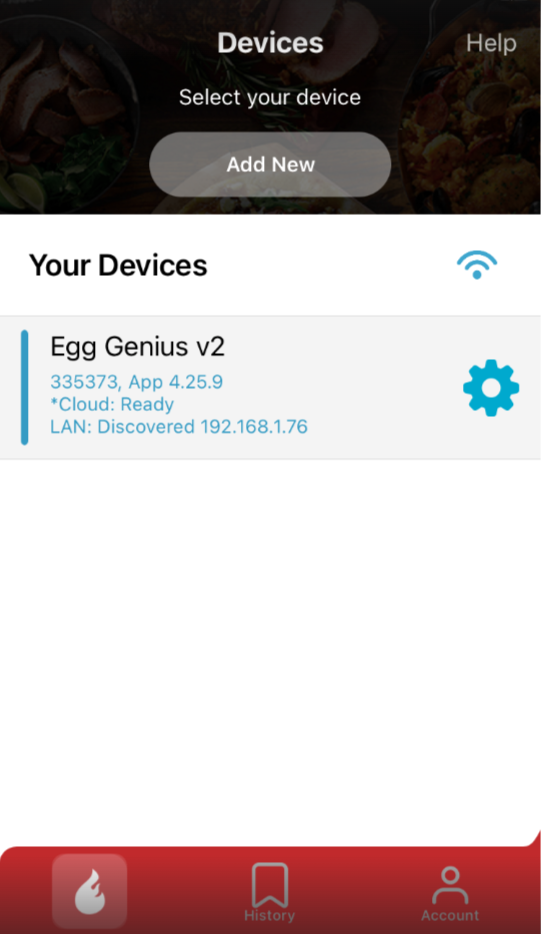
- The Egg Genius will then show online and do a firmware update if needed. (See screenshot below)
Here is a video that may help: https://youtube.com/shorts/SROAEDQNhk0?feature=share
Please let us know if further assistance is needed.
* Be sure to re-enable Active Armor by using the Chat Icon via the Smart Home Manager Mobile App, send a message "enable activearmor", then "Yes"